Testing your integration
Use the Bpayd sandbox to verify your integration before processing live payments. The sandbox lets you exercise the same request and response flow as production without creating real transactions.
Keep test and live traffic separate
Use the same credentials as production, but always mark API requests as test transactions with IsTest: true. Do not use production data while developing and running automated tests.
How testing works
Bpayd testing has two surfaces:
- API — send transactions with
IsTest: trueand inspect the response. - Portal — review test transactions and reporting with Test Mode enabled.
The API and Portal use the same test data. This makes it possible to validate both sides of an integration: the request your application sends and the transaction your operations team sees.
Supported sandbox test cards
The values in this page are sandbox fixtures for the documented Bpayd flows. Use
them with your merchant credentials and IsTest: true; they never represent real
card accounts. A test number from another provider is not guaranteed to work in Bpayd.
Create a test transaction
Add IsTest: true to the request body for every transaction created in the sandbox.
Supported sandbox test cards
Use one of the supported card numbers listed below for an approved sandbox payment.
No real funds move when the request is sent with IsTest: true. Never store or log a
CVN/CVC/CVV.
Test successful payments by card brand
Use any future expiration date and the CVN length required by the card brand. These values simulate approved card payments in the Bpayd sandbox.
| Brand | Card number | CVN |
|---|---|---|
| Visa | 4242 4242 4242 4242 |
Any 3 digits |
| Visa debit | 4000 0566 5566 5556 |
Any 3 digits |
| Mastercard | 5555 5555 5555 4444 |
Any 3 digits |
| Mastercard 2-series | 2223 0031 2200 3222 |
Any 3 digits |
| Mastercard debit | 5200 8282 8282 8210 |
Any 3 digits |
| Mastercard prepaid | 5105 1051 0510 5100 |
Any 3 digits |
| American Express | 3782 822463 10005 |
Any 4 digits |
| American Express | 3714 496353 98431 |
Any 4 digits |
| Discover | 6011 1111 1111 1117 |
Any 3 digits |
| Discover | 6011 0009 9013 9424 |
Any 3 digits |
| Discover debit | 6011 9811 1111 1113 |
Any 3 digits |
| Diners Club | 3056 9300 0902 0004 |
Any 3 digits |
| Diners Club (14-digit) | 3622 7206 2716 67 |
Any 3 digits |
| JCB | 3566 0020 2036 0505 |
Any 3 digits |
| UnionPay | 6200 0000 0000 0005 |
Any 3 digits |
| UnionPay debit | 6200 0000 0000 0047 |
Any 3 digits |
| UnionPay (19-digit) | 6205 5000 0000 0000 004 |
Any 3 digits |
The following network-specific fixtures are available in the provider test suite. Use them only if the Bpayd merchant account and integration support the corresponding network or co-branded card:
| Network | Card number | CVN |
|---|---|---|
| BCcard / DinaCard | 6555 9000 0060 4105 |
Any 3 digits |
| Cartes Bancaires / Visa | 4000 0025 0000 1001 |
Any 3 digits |
| Cartes Bancaires / Mastercard | 5555 5525 0000 1001 |
Any 3 digits |
| eftpos Australia / Visa | 4000 0503 6000 0001 |
Any 3 digits |
| eftpos Australia / Mastercard | 5555 0503 6000 0080 |
Any 3 digits |
The same numbers can be entered without spaces in API requests. For the regular Bpayd
sale flow, send the number as CardNumber, the expiry as ExpDate, and the security
code as CVN.
Test declined payments
Use these cards to verify that your integration does not fulfill an order when the issuer declines the payment. The response text and processor fields should be saved for troubleshooting; do not map Stripe-specific error names into the Bpayd API.
| Scenario | Card number | Expected behavior |
|---|---|---|
| Generic decline | 4000 0000 0000 0002 |
Payment declined |
| Insufficient funds | 4000 0000 0000 9995 |
Payment declined |
| Lost card | 4000 0000 0000 9987 |
Payment declined |
| Stolen card | 4000 0000 0000 9979 |
Payment declined |
| Expired card | 4000 0000 0000 0069 |
Expiration validation/decline |
| Incorrect CVN | 4000 0000 0000 0127 |
Security-code validation/decline |
When testing CVN validation, always send a CVN. A missing CVN tests a different path and may bypass the validation rule depending on the merchant configuration.
{
  "mid": "YOUR_MERCHANT_ID",
  "UserName": "YOUR_USERNAME",
  "Password": "YOUR_PASSWORD",
  "AppType": 1,
  "AppKey": "YOUR_APP_KEY",
  "cid": 1,
  "IsTest": true,
  "Amount": 12.50,
  "UserTransactionNumber": "test-order-1001",
  "TransactionType": 1,
  "CardNumber": "4242424242424242",
  "ExpDate": "0830",
  "CVN": "123",
  "NameOnCard": "Test User",
  "ZipCode": "32606"
}
This is a simplified SaleRequest. Amount is a JSON number, TransactionType: 1
means a credit sale, and UserTransactionNumber must be unique for each request. The
transaction fields vary by endpoint. Use the exact request shape shown in the
API Reference and replace the placeholder credentials
with the same merchant credentials you use in production.
Check the response
An accepted request returns the shared response fields used throughout the API:
Do not mark an order as paid until the transaction-specific response confirms the
payment. For a sale, save ServiceReferenceNumber, AuthorizationNumber, LastFour,
and the final ResponseCode when they are present. ResponseCode: 200 means the
operation completed successfully; it is not a substitute for storing the transaction
reference and verifying the operation-specific result. Common request failures include
invalid credentials (1), unauthorized operations (11), invalid parameters (506),
and system errors (300).
Transaction types available in the sandbox
The sandbox supports the standard transaction lifecycle:
| Transaction | What to verify |
|---|---|
| Sale | A payment is authorized and captured in one request. |
| Force Sale | A previously authorized payment can be captured. |
| PreAuth | An authorization can be created before capture. |
| Complete | A pre-authorization can be completed. |
| Refund | A captured test payment can be refunded. |
| Void | An authorization can be voided before settlement. |
| Reversal | An eligible transaction can be reversed according to the endpoint rules. |
Verify a successful payment
Start with a successful Sale request. Confirm that your integration:
- Sends
IsTest: true. - Handles the approved response and stores the transaction identifier.
- Shows the correct amount and status to the customer.
- Can retrieve or reconcile the transaction using the returned identifier.
- Displays the transaction in the Portal when Test Mode is enabled.
Repeat the same checks for PreAuth followed by Complete if your business flow separates authorization and capture.
Test errors and recovery
Your application should treat a declined or invalid response as an expected outcome, not as an unhandled exception. Test that your integration:
- shows a clear, actionable message to the customer;
- does not mark the order as paid;
- does not retry a request blindly;
- records the response for support and reconciliation; and
- allows the customer to correct the payment details or try again.
Use the response returned by the sandbox and the API Reference for the endpoint-specific status and error fields. Do not infer success from an HTTP status alone—inspect the transaction response.
Test 3D Secure flows
If your integration uses 3D Secure, test both paths:
- an authentication that completes successfully;
- a challenge or authentication that does not complete.
The expected result is that your application waits for the final payment result before confirming the order. Follow the 3D Secure Web or 3D Secure Mobile guide for the integration-specific flow.
3DS Integrator test cards
These cards belong to the 3DS Integrator sandbox, which is the provider used by Bpayd's 3DS integration. They are not general Bpayd card numbers and should not be used to test a regular sale without the 3DS flow. The provider documents that these cards work with any expiry date, amount, and cardholder name.
Use a CVN accepted by the payment form. These PANs are fixtures of the 3DS Integrator sandbox, not universal test cards and not general Bpayd card numbers. Do not use them to test a regular sale without the 3DS flow, and never use them in production.
Visa
| Card number | Scenario | Expected status | ECI |
|---|---|---|---|
4005519200000004 |
Frictionless | Y Authenticated |
05 |
4124939999999990 |
Frictionless | Y Authenticated |
05 |
4444333322221111 |
Frictionless / data share | Y / I |
05 / 07 |
4917300800000000 |
Frictionless | Y Authenticated |
05 |
4444333322221111455 |
Frictionless (19-digit) | Y Authenticated |
05 |
4005510021003418 |
Attempted | A Attempted |
06 |
4012000033330026 |
Challenge | C then Y |
05 |
4485666666666668 |
Challenge | C then Y |
05 |
4009348888881881 |
Failed | N Not authenticated |
07 |
4485660000000007 |
Failed | N Not authenticated |
07 |
4000020000000000 |
Unavailable | U Unavailable |
07 |
4166676667666746 |
Rejected | R Rejected |
00 |
4012000077777777 |
Not enrolled | Error | — |
4124930001898619 |
Not enrolled | Error | — |
491761000000000003 |
Failed (19-digit) | N Not authenticated |
07 |
Mastercard, Maestro, American Express, Discover, and Diners Club
| Brand | Card number | Scenario | Expected status | ECI |
|---|---|---|---|---|
| Mastercard | 5555341244441115 |
Frictionless | Y |
02 |
| Mastercard | 5406004444444443 |
Frictionless | Y |
02 |
| Mastercard | 5407721000353481 |
Frictionless | Y |
02 |
| Mastercard | 5577000044003442 |
Data share | I |
06 |
| Mastercard | 5577000036004234 |
Attempted | A |
01 |
| Mastercard | 5100060000000002 |
Challenge | C then Y |
02 |
| Mastercard | 5472065555555557 |
Challenge | C then Y |
02 |
| Mastercard | 5577000055770004 |
Failed | N |
00 |
| Mastercard | 5433070000000017 |
Unavailable | U |
00 |
| Maestro | 6771798021000008 |
Frictionless | Y |
02 |
| Maestro | 5204480010000005 |
Rejected | R |
07 |
| American Express | 370000000000002 |
Frictionless | Y |
05 |
| American Express | 378282246310005 |
Frictionless | Y |
05 |
| Discover | 6011601160116611 |
Frictionless | Y |
05 |
| Discover | 6445644564456445 |
Frictionless | Y |
05 |
| Discover | 6011000991300009 |
Frictionless | Y |
05 |
| Diners Club | 36006666333344 |
Frictionless | Y |
05 |
Interpret the 3DS result
| Status | Meaning | Bpayd integration behavior |
|---|---|---|
Y |
Authenticated | Continue with the payment and send the returned secure data. |
A |
Authentication attempted | Continue only if the merchant's configured Bpayd policy accepts attempted authentication; do not assume A is always equivalent to Y. |
C |
Challenge required | Keep the payment pending until the challenge finishes; continue only after a terminal Y or accepted A. |
N |
Not authenticated | Stop payment submission and show a retry path. |
U |
Authentication unavailable | Stop payment submission or apply the merchant's documented fallback policy. |
R |
Rejected | Stop payment submission. |
I |
Informational/data share | Do not treat as authenticated unless the merchant's configured policy explicitly allows it. |
| Error | Not enrolled or provider error | Stop payment submission and handle as a controlled error. |
For a successful 3DS result, send both authenticationValue as SecureData and
threeDsTransactionId as SecureTransactionId in the Bpayd payment request. Never
continue payment solely because the browser challenge closed. See the 3DS Web guide
for the complete callback and response handling rules.
3RI / merchant-initiated authentication cards
Use these only when testing the 3RI flow, not a normal browser challenge:
| Brand | Card number | Expected status | ECI / CAVV |
|---|---|---|---|
| Visa | 4917300800000000 |
Y Authenticated |
05, CAVV present |
| Visa | 4263982640269299 |
N Not authenticated |
— |
| Visa | 4000020000000000 |
U Unavailable |
— |
| Visa | 4166676667666746 |
R Rejected |
— |
| Mastercard | 5555341244441115 |
Y Authenticated |
07, CAVV present with kX prefix |
| Mastercard | 5577000055770004 |
N Not authenticated |
07 |
| Mastercard | 5433070000000017 |
U Unavailable |
07 |
For a reproducible test, the provider documents amount 99.00, cardholder Test User,
and test@example.com as example values. Use any expiry date that is in the future at
the time of testing (for example, 12/30); do not copy a date that may expire, such as
12/26, after the end of 2026. These are provider examples, not Bpayd requirements;
use the field formats required by your integration.
Test refunds and voids
Use a test transaction to verify the actions your support and operations teams need after payment:
- Void an authorization before it is captured.
- Refund a captured payment after the sale completes.
Confirm that the resulting status is shown consistently in your application, in the API response, and in the Portal. Keep the original transaction identifier associated with any follow-up action.
Full and partial refunds are available through the corresponding refund operations. Test that a partial refund cannot exceed the remaining amount and that the same amount cannot be refunded twice. A void is for an eligible authorization before settlement; after settlement, use a refund. If your integration uses a reversal operation, test it with the endpoint-specific eligibility rules in the API Reference.
Test Payment Links
Payment Links are a separate hosted-checkout flow. Test both fixed-amount and open-amount links:
- Create a Payment Link in the sandbox.
- Open the returned Bpayd URL.
- Pay with one of the supported sandbox test cards.
- Verify the customer return URL, if configured.
- Retrieve the Payment Link and confirm that its status changes from
UnpaidtoPaid. - Confirm the payment in the Portal with Test Mode enabled.
Payment Links are one-time checkout URLs. Verify that an already-paid or disabled link cannot be used as a new payment. See the Payment Links guide for the create, retrieve, and disable operations.
Test webhooks and reconciliation
Webhooks notify your application about transaction activity after the API request. In the sandbox, test that your receiver:
- accepts the configured Bpayd payload version;
- verifies the webhook signature before processing the event;
- records the event and transaction identifier;
- safely ignores a duplicate delivery; and
- returns a successful response only after the event is safely stored.
Cover at least Sale, refund, void, pre-authorization, and completed pre-authorization events when those operations are part of your integration. Use the webhook setup guide, receiving events guide, and webhook reference for payloads, signatures, and delivery behavior.
When reconciling, compare the transaction identifier, amount, test flag, and final status. A webhook is useful for asynchronous updates, but it should not replace checking the immediate API response for the request that initiated the transaction.
Test payment methods beyond cards
If your integration supports alternative payment methods, run the same success, failure, and post-payment checks for each one:
Use the sandbox environment and the test credentials or merchant configuration required by each method. Do not assume that a card test proves that a wallet or mobile flow works.
Review test data in the Portal
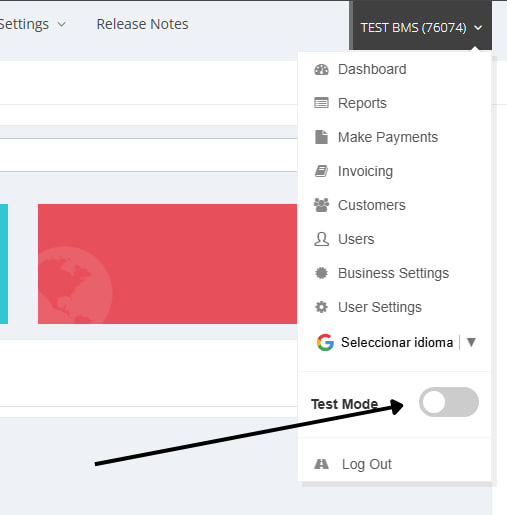
Portal pages show production data by default. Turn on Test Mode before reviewing sandbox transactions or dashboard statistics.
Transactions created through the API with IsTest: true appear in the Portal's test view. Transactions created directly in the Portal also follow the active mode: with Test Mode enabled they are test transactions; with it disabled they are live transactions.
Before going live
Use this checklist before switching to production:
- Remove test-only fixtures and test data from customer-facing screens.
- Confirm that live requests do not send
IsTest: true. - Verify credentials and endpoint configuration for production.
- Test the full order lifecycle, including refunds or voids where applicable.
- Verify that webhook handling and reconciliation are covered by your integration tests.
- Confirm that credentials, card data, and webhook secrets are not exposed in source code, browser logs, or application logs.
- Confirm that all production traffic uses HTTPS and that test fixtures are disabled.
Need a repeatable test suite?
Keep sandbox requests deterministic and save representative responses as fixtures. This helps you test UI states and error handling without making live payment requests.
Do not load-test the sandbox
The sandbox is for functional and integration testing. Do not use it for load tests or high-volume traffic; coordinate performance testing with Bpayd so it does not trigger processor or environment limits.